| Objectives | - | Develop the web skills you will use on each subsequent lab. |
| - | Create a webpage titled "Lab 1" discussing the process you used to create it (including screen captures). |
| Note: | If you already build your own web pages, feel free to ignore these steps and just add a /fm328 directory to your server space. | |
There are three steps involved in creating a webpage. They are:
1. Setting up your account on Dante
2. Creating your webpage
3. Transferring your webpage to your Dante account
Step 1. Setting up your account on Dante
Before you can publish web pages on the UW servers, you need to:
- activate your Dante account (if it is not already activated)
- activate Web publishing services for your Dante account
Set up your Dante account by following this link.
| Note: | once your account is set up, you should be able to go to this link and see a webpage: http://students.washington.edu/yourUWNetID/ *substitute for yourUWNetID appropriately* | |
Step 2. Creating your webpage
There are many ways to accomplish this task. UW computing has many resources available to help with this task. Three ways to go about this task are:
Using Catalyst
Using web publishing software
Writing html on your computer or on Dante directly
The simplist and least recommended method is to use MS Word, which is available on all campus computers. Word provides an acceptable tool for making web documents with pictures. You can start a new Word document or open an existing Word document and save in html format.
Step 3. Transferring your webpage to your Dante account
If you chose to create your web pages on a home or lab computer, you will need to transfer the files to the server space in your Dante account. This is done using a File Transfer Protocol (FTP) program. You will need secure FTP software (which protects your password) in order to connect to the UW servers. This software should be available on any UW machine on campus or in the CFR.
If you are working at home you will need to install the software. You can download it from UW Computing here.
If you have a Windows machine, you will need SSH 3.X. If you are using a Mac, you will need Fetch(Secure) 4.X.
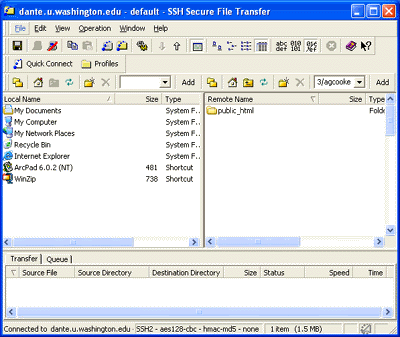
Once the software is installed it should look like what is shown below (if you are using Windows). When using SSH 3.X all files can be transferred by dragging them to the folder on your Dante server space.
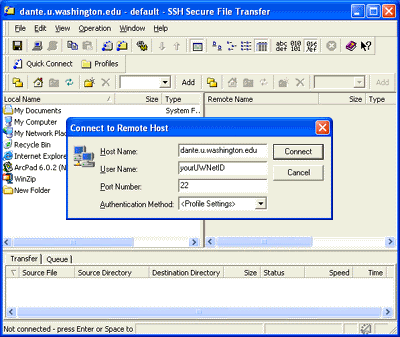 |  | |
| Connecting to UW servers using SSH 3.2 Make sure the Host Name is: dante.u.washington.edu Replace yourUWNetID appropriately |
Once connected there are three windows. The window on the left is your computer. The window on the right is your Dante server space. The window along the bottom shows files while they are transferred. Notice the folder in the right window titled "public_html". All web pages must be located in this folder. |
All web page files must be placed in your "public_html" folder in order for them to be viewed on the internet.
For this class, create a new folder named "fm328" within your "public_html" folder.
Place all class web pages in the "fm328" folder.
| Note: | once this is done, you should be able to use this link to see your class webpage: http://students.washington.edu/yourUWNetID/fm328/ *substitute for yourUWNetID appropriately* | |
Information on Transferring Files from UW
Instructions - Moving Files From a PC (SSH Secure FTP)
Instructions - Moving Files From a Mac (Secure Fetch)
Software
There are a number of good programs for creating, editing, and saving images, many of which are available at campus computer labs. Some programs include: Adobe Photoshop, Macromedia Fireworks, Microsoft Photo Editor, and others. Becoming familiar with how to use these programs is very useful in the creation of web pages.
Screen Captures
In Windows, an image of the current window is copied to the clipboard by hitting the "Alt" and "Print Screen" keys at the same time. This image can be pasted (Ctrl-v) into one of the above mentioned programs or into a Word document.
Transferring Images
all images for your web pages must be transferred using an FTP program to your Dante account.
<http://courses.washington.edu/fm328/lab1.htm>