
Introduction to Geographic Information
Systems in Forest Resources |
Hyperlinking
Objective:
to learn the use of hot linking in ArcGIS
- Perform drive
substitution to create drives L (CD) and M (removable drive).
- Prepare the files
- Prepare the feature layer
Digitize polygons
Join attributes
- Alter layer properties
- Watch the hot links work
Perform drive substitution
Perform drive
substitution to create the virtual drives L and M.
Prepare the files
- Create a new directory on M:\ for this exercise, called hyperlinks.
- Download the self-extracting zip file (zip_gif.zip)
of GIF files to the hyperlinks directory.
- Extract the files:
- Examine a few of these files. You should be able to open them within the
web browser (File > Open, then browse the disk) or by double-clicking the
file name in the Windows Explorer.
- Create a list of the image files. The list will be a simple ASCII file
of the complete pathname of each image . Here are 4 methods. Read through
all methods before choosing one. Feel free to cut-and-paste into the command
prompt.
- The "brutal" way (does not need the command prompt):
- Open a text editor and type in the full pathname to each file. Save
this text file as buildings.txt. The name of the file does
not matter, as long as you use the same file name through the rest
of the exercise. This will take the longest of any method and also
has the danger of introducing typographical errors.
- The "hard" way:
- In the command prompt, use the commands
:: change drives
m:
:: change directories
cd \hyperlinks
:: write a line containing the string "image_path" to the
file
echo image_path > buildings.txt
:: write each image file's name to the file
dir /b *.gif >> buildings.txt
to create a simple text file of all the GIF files in the present
working directory.
If the command executes successfully, you will get no system response.
However, it will create a file called buildings.txt.
- Open the buildings.txt file in the text editor of your choice
and edit so that the full pathnames are printed. This is the tedious
and time-consuming step making this the "hard" way, even
if you use search-and-replace.
- The "easy" way:
- Use the following NT-DOS commands in the command prompt window.
This method will create a file called buildings.txt containing
full pathnames of the image files.
The lines beginning with ":" are comments that just explain to a reader
what the DOS commands are doing.
:: change drives
m:
:: change directories
cd \hyperlinks
:: if the list file exists, delete it
if exist buildings.txt del buildings.txt
:: write the field name
echo image_path > buildings.txt
:: set a variable for the current path
for /f "tokens=*" %i in ('cd') do set drivepath=%i
:: write out a list of gif files in the current path to a text file
for /f %f in ('dir /b *.gif') do echo %drivepath%\%f >> buildings.txt
To make this easier, copy from the Web browser, and click the icon
in the upper-right of the command prompt and select Edit > Paste.
You will see the commands scroll up in the command prompt window as
they execute.
Because the full pathnames to the files are placed in this file with
no additional editing, this is the "easy" way. However,
it took over an hour of web searching and a little DOS experimentation
to find the best way to do this. The time spent searching out and
developing the method was greater than the time to enter 17 full file
pathnames, but suppose you had 1,000 files to process?
Working the method out took longer, but saved the tedious drudgery
of editing the file. More importantly, if this is ever necessary in
the future, the method is already worked out.
I consider thinking and problem solving a better way of spending time
than doing tedious, mindless work.
- Open the text file into Excel or your favorite text editor. You
will use this list to identify what buildings to digitize in the next
step. You will also use the text editor to add and populate a new
field of data in the list of files. This will be easier in Excel than
in most word-processing style text editors.
You have just downloaded and extracted a set of GIF image files, and created
a text file listing the full pathname of each image file. This list of files
will be used later in building the hot link field.
Prepare the feature layer
Digitize polygons
- Download the zip file (uw_campus_jpg.zip)
and extract to M:\hyperlinks. This is a 24-bit, 3-band, color orthophoto
of the UW area. The file has been registered to these projection parameters:
Projection: State Plane
Zone: Washington State North
Datum: NAD 83/91
Units: Meters
Pixel (cell) size: 1 m
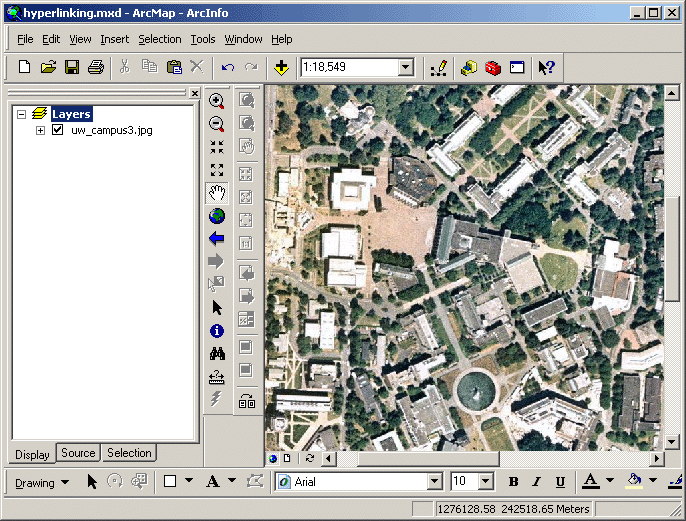
- Unzip the image and add uw_campus3.jpg to data frame.
- Start ArcMap. Save the map document as M:\hyperlinks\hyperlinking.mxd.
- Add the image (uw_campus3.jpg) to the data frame and zoom into the
UW campus.
- Open the clickable UW
Visitors' map in a new tab or browser window, and based on the file names
of the GIF image files, identify the locations of the selected buildings.
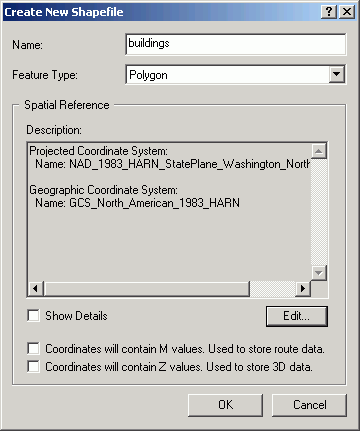
- Create a new polygon shapefile in ArcCatalog called M:\hyperlinks\buildings.shp
to store the outlines of these buildings. Import the coordinate system properties
from the orthophoto. You will only create a single shapefile to contain all
buildings, rather than individual shapefiles for each building. However, each
individual building will be its own polygon feature with its own attributes.
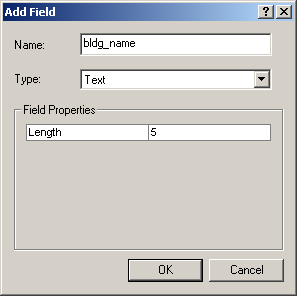
- Update the attribute to contain building names. I suggest calling the field
name bldg_name, but you can call it whatever you like, as long as you
use the same naming convention through the rest of the exercise.
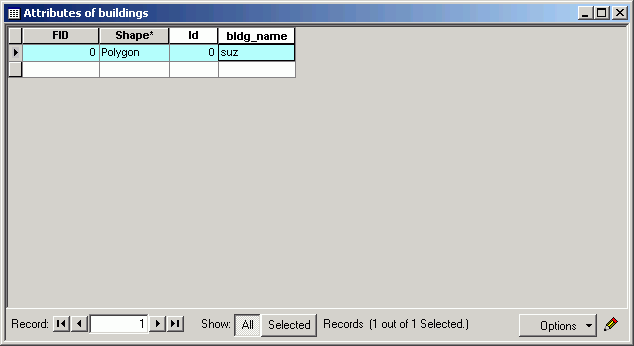
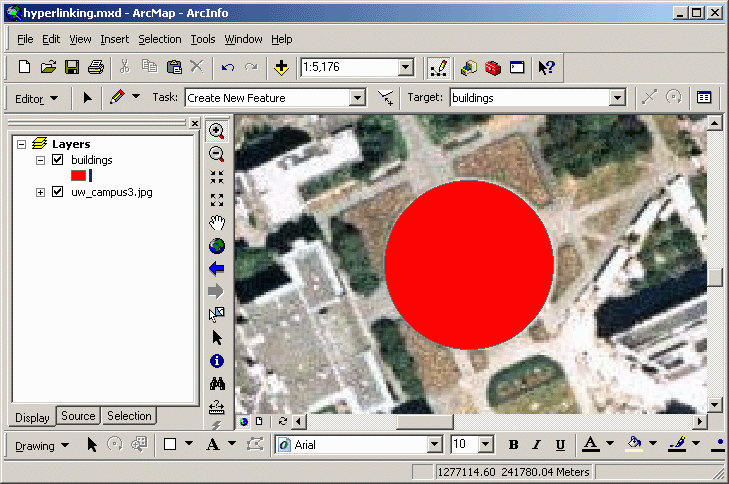
- Start editing and begin adding polygon features to the shapefile. Start
by adding a single polygon. This is the Suzzallo library.
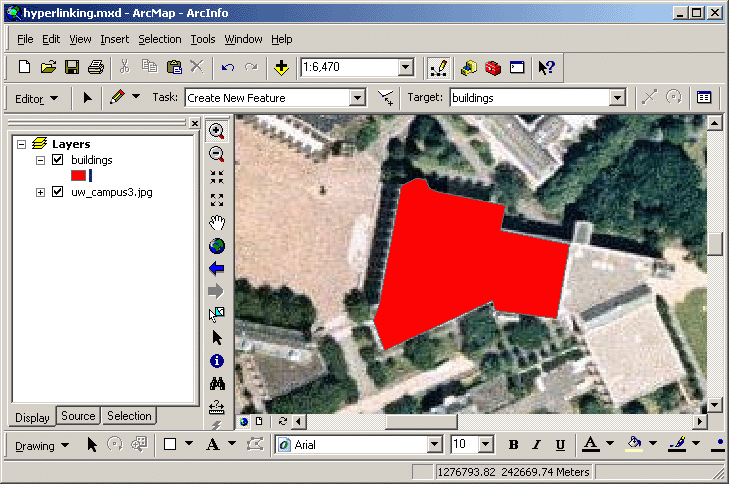
- Update the value for the record to include the building name.
- Create several more building polygons, updating the attribute for each feature.
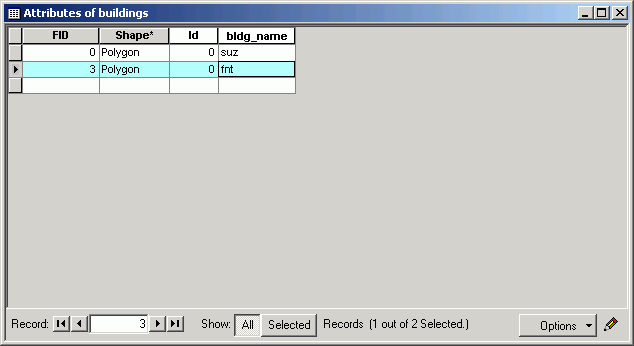
- Stop editing when you have added all the buildings you want. It is not necessary
to add all buildings unless you want to.
Join attributes
- Alter the image list file, by adding a field to hold the building name field.
The first line of the file needs to contain the field names.
I suggest image_path for the images, bldg_name (as before) for
the building name.
If you are using a plain text editor, make sure to use a <TAB>
between the field names. (Remember ArcGIS can use comma- or tab-delimited
ASCII files.)
- Add a new column of text containing the same building names as you created
for the shapefile polygons. Think this out: we will be using a join, so the
record values must be identical to make a match between the list of images
and the building polygons.
Again, if you are using a plain text editor, make sure you are using commas
or tabs!
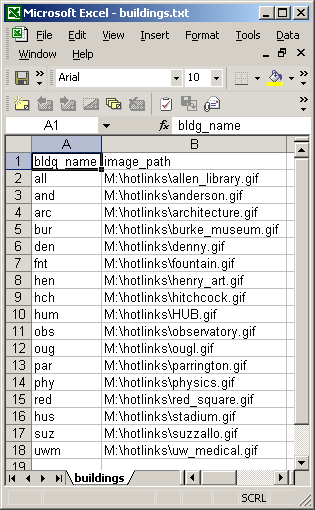
- If you are using Excel, save the file as dBASE, text, or CSV (comma-separated
values). If you are using a plain text editor, just save the file as plain
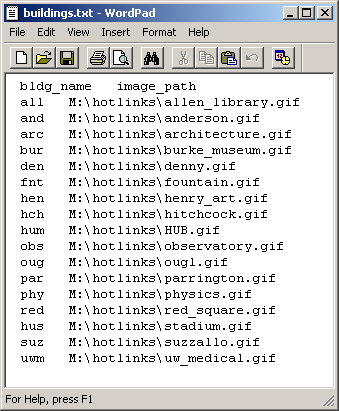
text (the TABs will serve as delimiters). In either case, your file should
look something like this, but where the building names match those of your
shapefile.
- Make sure to close the file in Excel or your other application before attempting
to add to ArcGIS to avoid file-sharing problems.
- Add the file to the ArcMap document. If you get an error, your file is probably
not formatted correctly. Be aware that stray spaces, Tabs, or commas can make
your file inaccessible within ArcMap. If you are using CSV or text, check
the file in a plain text editor.
- Open the table in ArcMap to check that the contents have imported correctly.
If you find missing values, you may need to re-export (if this is text or
CSV) or make edits in ArcMap (if this is dBase).
- Join the table of images to the attribute table for the buildings,
based on the common building name attribute field. If you used different building
names in the list of buildings and the shapefile, the join will not work for
obvious reasons.
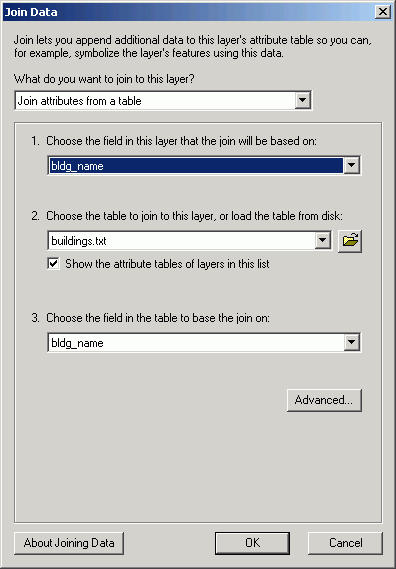
- Verify that the join worked correctly. You should have an image_path value for
each building polygon feature. If you do not, it is probably because your building names do not match exactly. To remedy this, remove all joins, and fix the
building name in the buildings file so that each building name matches between
the attribute table, then re-join. Note that if you are using a text file
rather than a dBASE file in Excel, you will need to edit the text file outside
of ArcMap, and then re-add it to the map document; if you are using a dBase file
you can edit directly within ArcMap.

- Make a "permanent" field containing the image path:
- Create a new field in the the attribute table of building polygon layer called image_path.
- Use field calculator to set the new field's value to the contents of the image_path field from the joined table.
- Remove the join. The image_path field in the buildings layer attribute table will contain the file path to the images.
You have just created a shapefile of buildings with an image path in the attribute
table. The image path will tell ArcGIS which image to load as the hot link.
Alter layer properties
- Open the layer properties for the buildings layer.
- Check the box for Support Hyperlinks using field.
- Select the image_path field.
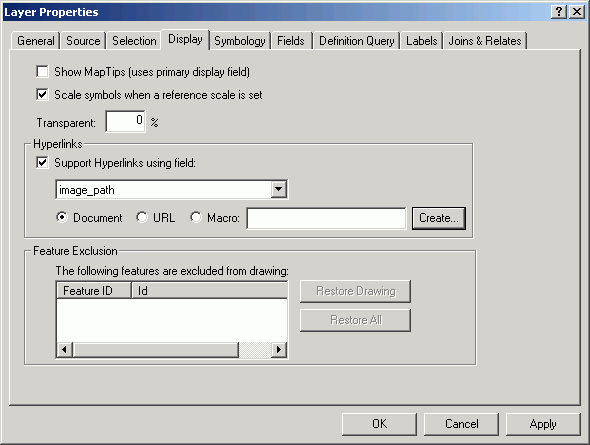
- After you click the Hyperlink tool
 on the toolbar, you will see blue outlines around the features that have hyperlinks.
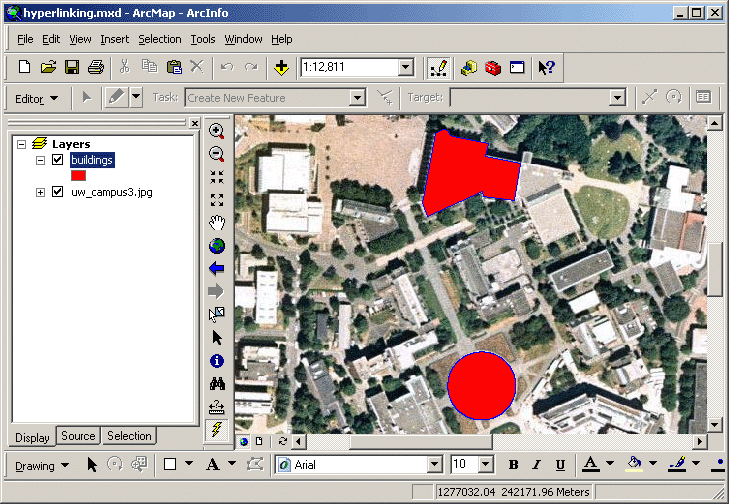
You have just instructed ArcGIS to use the field image_path as the hyperlink
source.
Watch the hot links work
- Using the Hyperlink tool ,
click on one of the buildings you digitized.
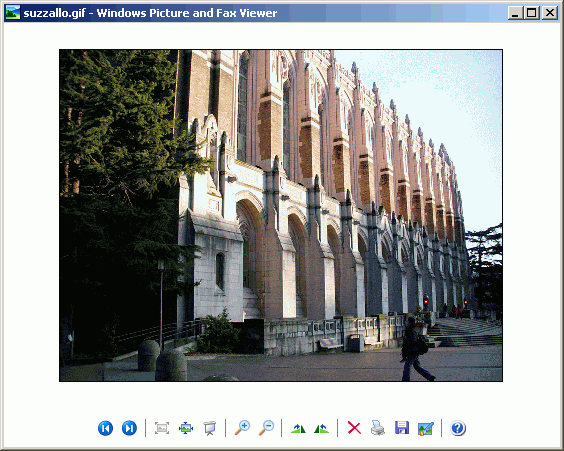
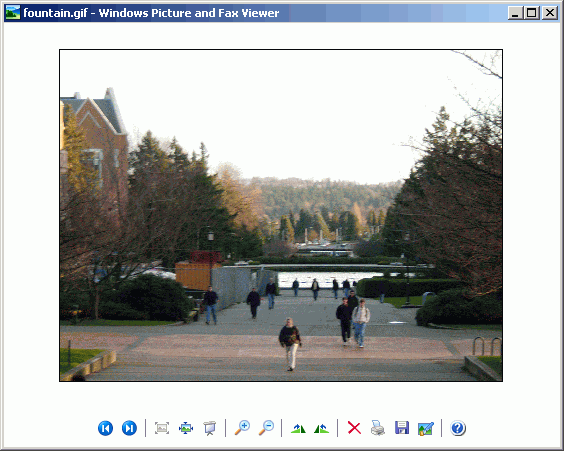
If all went correctly, an image of that building's façade will be loaded in
the default application associated with GIF files.
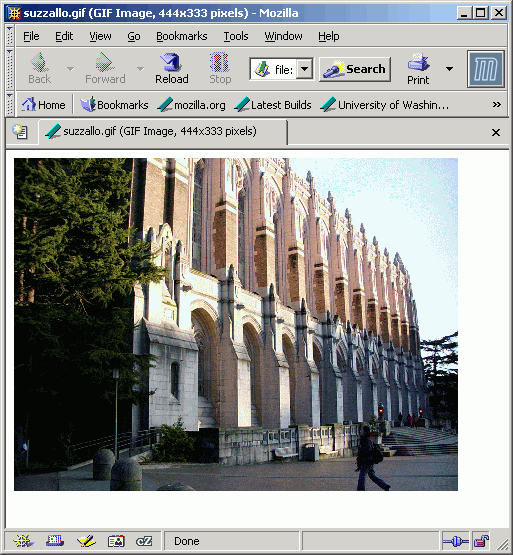
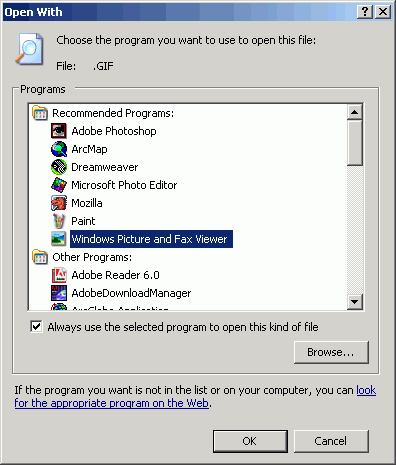
- If the default application for GIF images is the web browser, a new browser
window will be opened for every hyperlink. If you want to use the Windows
Picture and Fax Viewer, which will only open a single window and switch images
when a different feature is clicked, change the file association in the Windows
Explorer (Tools > Folder Options > File Types) to the Windows Picture
and Fax Viewer (this will only work if you have proper permission on the computer).
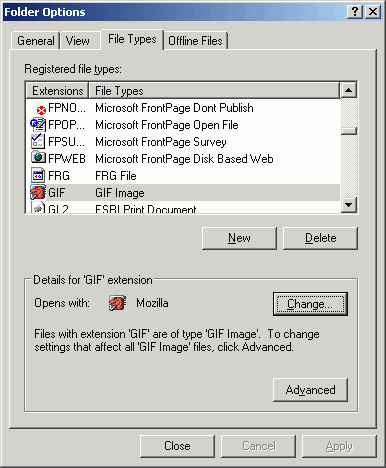
- Click all of the other buildings and view their images.
Hot links do not just need to be linked to image files. It is possible to link
to ASCII files, views, ArcMap documents, or even other applications on the system.
The hyperlink will automatically open the default application associated with
the file extension and load the file in to the application
REMEMBER TO TAKE YOUR CD AND REMOVABLE DRIVE
WITH YOU!!!!
Return to top
 |
|
TThe University of Washington Spatial Technology, GIS, and Remote Sensing
Page is supported by the School of Forest Resources
|
|
School of Forest Resources
|
 UW
Home
UW
Home Syllabus